Orders Notifications
You can send orders directly to the supplier via email from Quant. The order will be added to the email as an Excel attachment or in other selected formats.
The notification is set in the Notifications – Notification settings.
How to set up the notification?
- Click on the New button in the Notifications / Notifications Settings section.
- Select the Orders notification from the list.
- The new notification will appear in the table. You can set its design in the editor after opening it via the Open button.
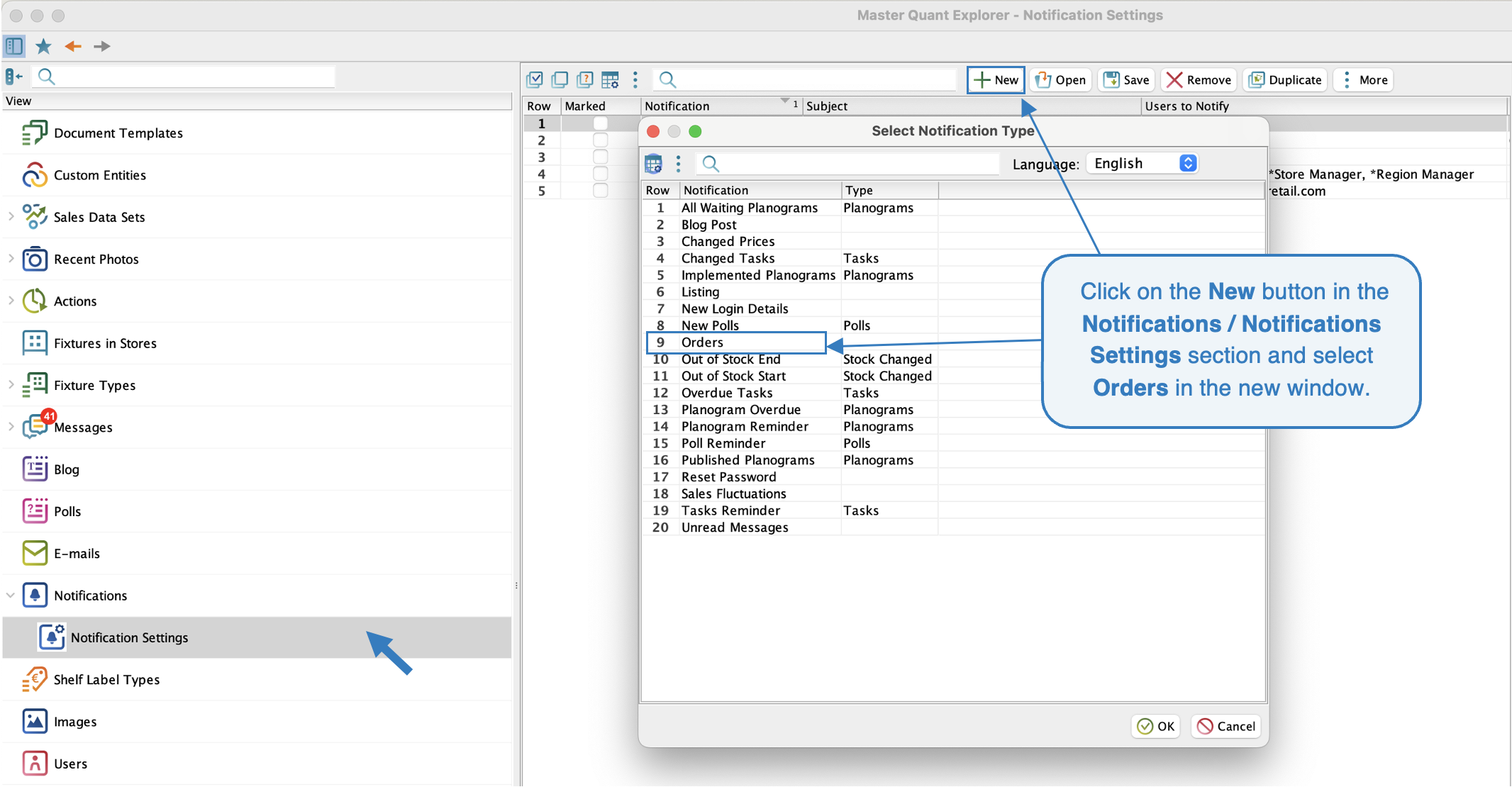 Order Notifications
Criteria
- Enabled: Check the box if you want the notifications to be sent.
- Language: The language in which the order email is sent (this will be reflected in the language of the attachments columns if the email contains them).
- Subject: Subject of the email notification.
- Suppliers: It is possible to create one notification for multiple suppliers or one notification separately for each supplier. Select the suppliers to whom this notification should be sent.
Order Properties
Variables
- Link to Quant Web App
- Supplier Name: This field will be automatically filled in with the supplier's name
Order Notifications Template
Suppliers
In the Supplier section, it’s necessary to set an email address for each supplier. If you want to configure this setting globally (so it applies to all suppliers), you can do so in the Suppliers Default Settings section.
Users can choose between CSV and XLSX as the format for the exported data. If both formats are selected, two attachments will be sent with the email. Therefore, if only one attachment is required, ensure that only the desired format is selected.
Suppliers Export Settings
Each format offers specific options:
- Column Configuration: allows you to select the columns to be included in the attachment.
- Sorting Rules: allows you to define the column(s) by which the data in the attachment will be sorted, it is possible to select ascending/descending using a checkbox.
- Attachment Name: choose an attachment name.
- Show Not Ordered Products: this option will allow you to see not ordered products in the attachment.
CSV format also offers character set and field delimiter settings etc.
For detailed information on the notification settings, see the Notifications Settings manual.
When the order is created and confirmed, if order notifications are enabled and set, an email will be sent with the selected attachment and message.
E-mail Notifications