Basic Settings of Polls
In Quant, you can create polls and communicate with stores or selected user roles. You can create a poll directly in Quant and later track and evaluate its results.
Polls can be created and managed in the section: Polls.
Section Polls
The Polls section is divided into 3 tabs:
- Properties: In this section, you can set the properties of the poll.
- Results: In this section, you can view the responses to the selected poll.
- Preview: Here you can see what a specific poll selected in the table looks like.
Properties
In the section: Polls → Properties, you can set the properties for a given poll.
Here you can set basic properties such as the name of the poll, author, and department.
Then you can set the properties related to the poll answers. Here you can choose between three Answer Types:
- One per user - every Quant user for whom the poll is enabled can answer. After answering, you will see the user's username or first and last name in Quant.
- One per store - only one user per store can answer - after answering, you will see the store name in Quant.
- One per store and user - each user of a given store can answer individually.
You can decide whether you want to allow one or multiple answers or custom answer.
Finally, you need to set the publishing properties, such as when the poll should be published on the website (Publishing Date), till when it should be answered by (Answer Term), and which users should see the poll (Web Access).
All poll properties can also be set in the Poll Editor.
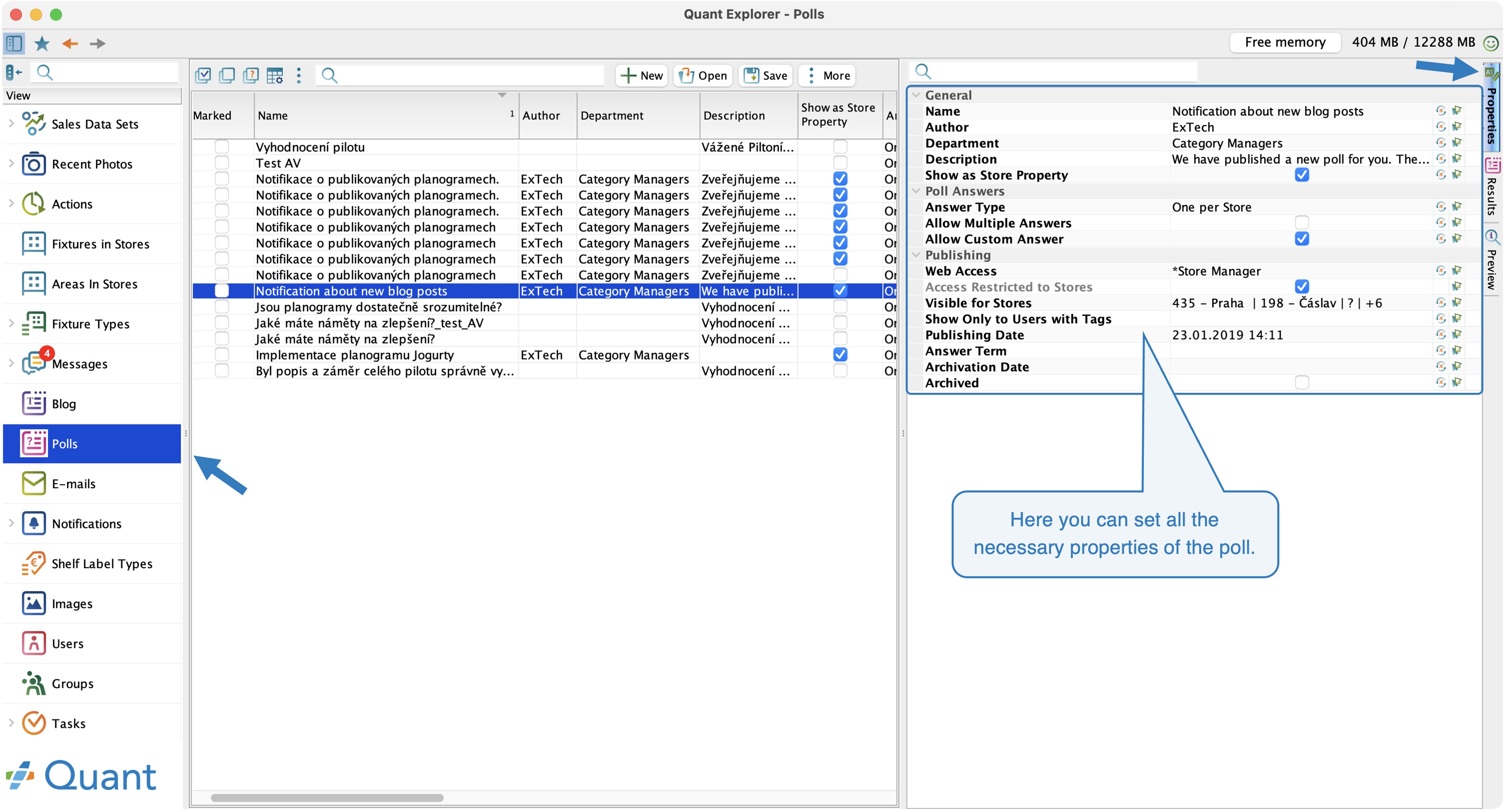 Section Properties
For more information on editing polls and a description of all poll properties, see the Poll Editor manual.
Results
After the poll has been answered on the website, the results will appear in the section: Polls → Results.
On the right-hand side, there is a table with an overview of users who have already answered the poll. Their answers can be seen in individual columns, which are named according to the text entered in the Short Name row in the Polls Editor. Above the table, the answers are displayed in a pie chart.
Displaying responses in the Results section
At the bottom, there is a table with an overview of all users which have not yet answered to the poll. In our case, the names of the stores are listed here because the poll was published for stores (in the section: Polls → Properties, the Answer Type "One per store" is selected).
On the right, in the pie chart, you can see how many users have already answered and how many still need to answer.
Number of answers in the Results section
Open Store
- If you select a user who has already answered in the table and click this button, Quant will redirect you to the Store Editor to the floor plan of the store managed by that user.
- If the user manages multiple stores, the button will not be available.
Open Store button
Preview
Here you can see a preview of the created poll. This is how the poll will look on the web interface after publication.
Preview
For more information on displaying polls on the web, see the Polls on Web manual.
Polls notifications
You can create two types of notifications for stores.
- New Polls: Notifications alerting users that a new poll has been published on the website.
- Poll Reminder: Notifications alerting users that the poll response deadline will expire in a certain number of days.
You can set up notifications in the section: Notifications → Notification settings.
Poll notifications
You can learn more about creating notifications for polls in the manual: Polls Notifications.