Resumen del planogramas en tabla
On the web interface in the menu in the Planograms section, you can view a list of all planograms of the selected store in a certain lifecycle state. In this section you can download a PDF with all prepared, waiting or implemented planograms.
The Planograms menu is divided into 4 sections:
- Prepared - displays a table with all planograms that are in the ready state.
- Waiting - displays a table with all planograms that are in the waiting state.
- Implemented - displays a table with all planograms that are in the implemented state.
- All - displays a table with all planograms.
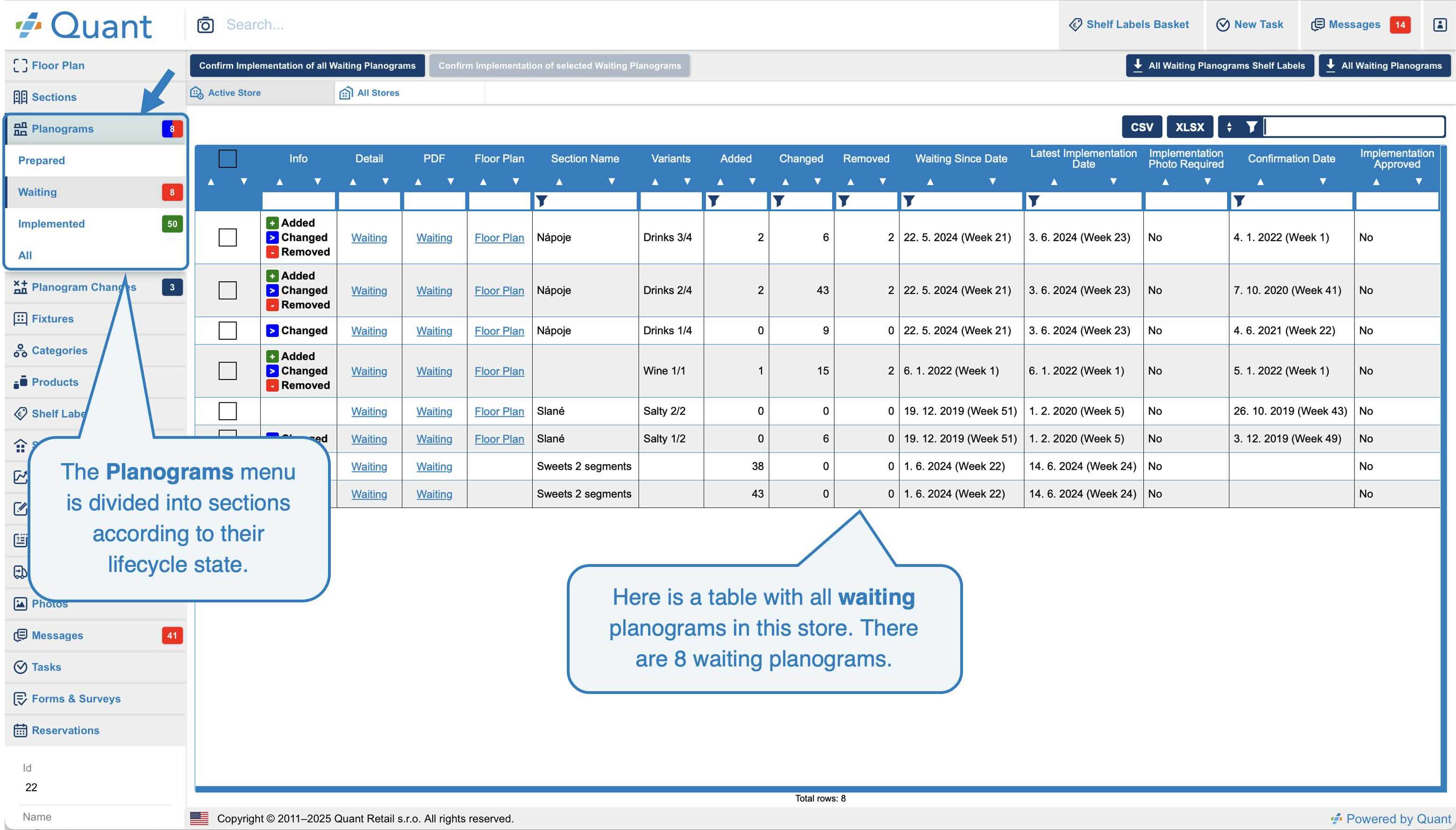 Planograms
You can view planograms either for the active store or for all stores you have assigned.
Active Store and All Stores
PDF download buttons
To the right of the toolbar you will find buttons for downloading PDF. These buttons always apply to all planograms in the table. For example, if you are on the Planograms / Waiting page, you can download a PDF with All Waiting Planograms or a PDF with All Waiting Shelf Labels, if you use Quant shelf labels.
You also have a PDF column in the table. If you click on the link next to a specific planogram, you can download a PDF for that planogram only.
Confirmation of the implementation of all waiting planograms at once
If you are on the page with all waiting planograms, you can confirm the implementation of all waiting planograms at once by clicking on the Confirm Implementation of all Waiting Planograms button. However, planograms that require a photo of the implementation cannot be confirmed in this way. It is up to you whether you want to display this button. We can display it, for example, only to category managers and not to stores.
If you select several planograms in the table, you can then confirm these planograms using the Confirm Implementation of selected Waiting Planograms button.
Table with planograms
You can see useful information in the planogram table. For example, if it is a table with waiting planograms, you can easily find out when these planograms were published as waiting (Waiting Since Date) and when the store must implement them (Last Implementation Date). Furthermore, there is always information about category and category variant.
Other useful columns for redirection:
- Detail - redirects you to a page with a preview of the selected planogram.
You can read more about the page with a preview of a specific planogram in the Planogram Detail manual.
- Floor Plan - redirects you to the store floor plan in which the fixture of the planogram you selected will be highlighted.