Kategorie erstellen
In Quant müssen alle Produkte in Kategorien unterteilt werden. Im Abschnitt Kategorien können Sie eine Hierarchie von Kategorien erstellen, die aus übergeordneten Kategorien und Unterkategorien besteht. Jede Kategorie kann dann mit Produkten gefüllt werden.
Wie erstelle ich eine neue Kategorie?
- Klicken Sie im Abschnitt Kategorien auf die Schaltfläche Neu.
- Geben Sie den Namen der Kategorie ein.
- Klicken Sie auf Ok.
Neue Kategorie erstellen
Die erstellte Kategorie wird in der Tabelle angezeigt. Im rechten Bereich können Sie dann ihre Eigenschaften bearbeiten. Wenn Sie die Kategorie markieren, können Sie sie mit der Schaltfläche Übergeordnete Kategorie festlegen in die Kategoriehierarchie einfügen und festlegen, welche Kategorie ihre übergeordnete Kategorie sein soll.
Übergeordnete Kategorie festlegen
Kategorienstruktur und Festlegen von Kategorieeigenschaften
Für jede erstellte Kategorie ist es sehr nützlich, eine Farbe festzulegen. Diese Farbe erscheint dann automatisch im Grundriss für Ausstattungselemente, denen diese Kategorie zugewiesen wurde, was die Übersichtlichkeit des Raums erheblich verbessert.
Wie kann man Produkte zu einer Kategorie hinzufügen?
Produkte können auf zwei Arten einer Kategorie zugeordnet werden:
- Produktfilter – die am häufigsten verwendete Methode. Produkte werden anhand eines bestimmten Attributs zugeordnet, das über den Import von Produkten importiert wurde. Sie können eine oder mehrere Bedingungen definieren, nach denen Produkte automatisch einer Kategorie zugeordnet werden. Für die Kategorie „Milchprodukte“ wird beispielsweise der Wert „Milchprodukte“ in das Attribut „Kategorie 1“ für alle Produkte importiert, die zu dieser Kategorie gehören sollen.
- Individuell zugewiesene Produkte – Mit dieser Methode können Sie bestimmte Produkte manuell aus der Liste aller Produkte in der Datenbank auswählen und der ausgewählten Kategorie zuweisen. Dies ist besonders nützlich, wenn Produkte nicht einfach mit einem Filter zugewiesen werden können oder wenn nur eine begrenzte Anzahl bestimmter Produkte zugewiesen werden muss.
Vorgehensweise zur Zuordnung von Produkten mithilfe der Produktfiltermethode
- Wählen Sie die Kategorie aus, der Sie die Produkte zuordnen möchten.
- Klicken Sie im rechten Bereich auf die Zeile Produktfilter.
- Klicken Sie im neu geöffneten Fenster auf Regel hinzufügen.
- Click Add Product Condition.
- Legen Sie die Kondition fest:
- wählen Sie die Produkteigenschaft aus,
- wählen Sie den Vergleichstyp,
- legen Sie den gewünschten Wert fest.
- Klicken Sie zur Bestätigung auf OK.
- Klicken Sie auf die Schaltfläche Speichern, um die Produkte entsprechend dem Filter zur Kategorie hinzuzufügen.
Durch Klicken auf Passende Produkte anzeigen können Sie vor dem Speichern überprüfen, welche Produkte die festgelegten Bedingungen erfüllen und wie viele Produkte der Kategorie zugeordnet werden.
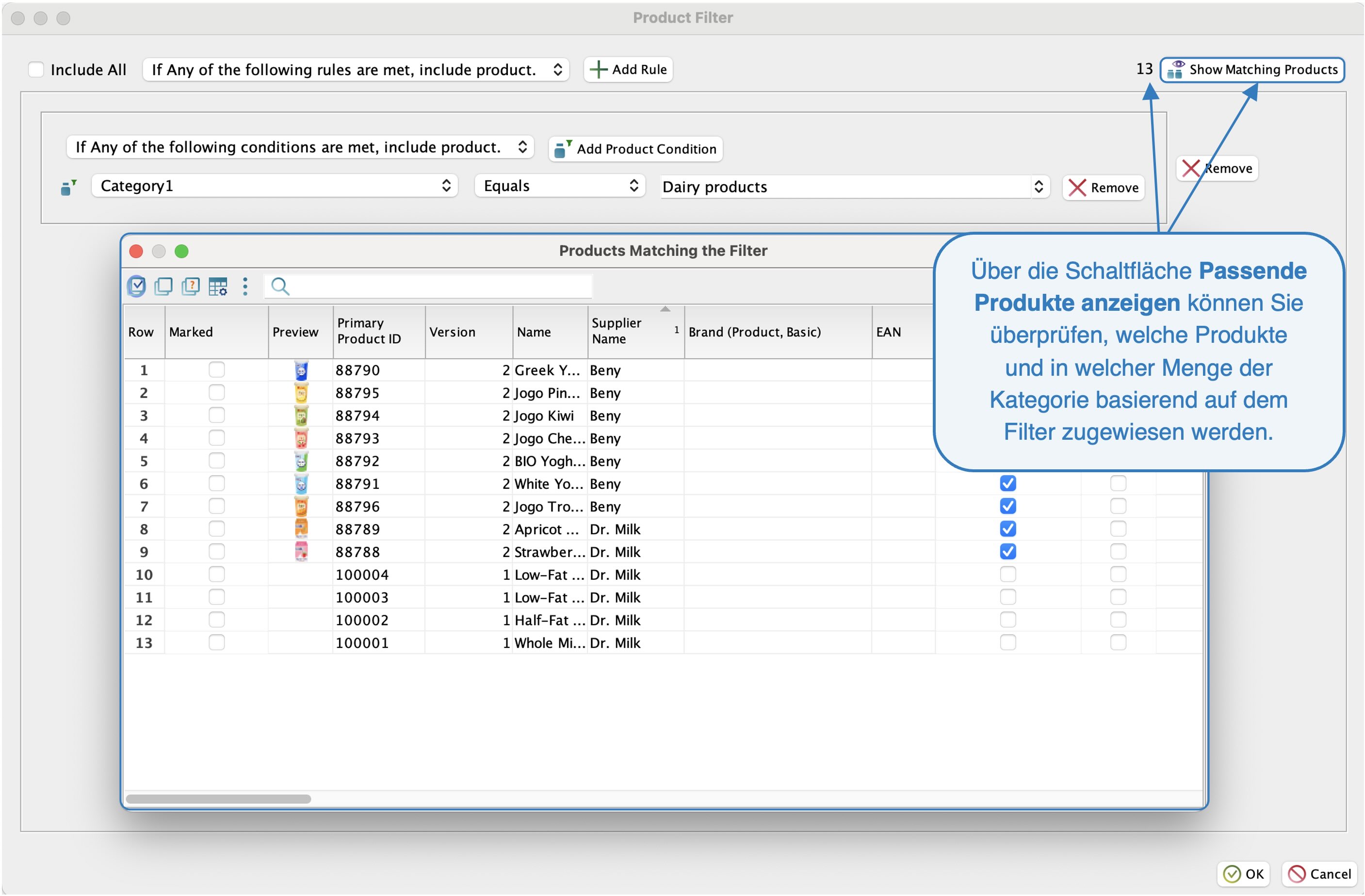 Passende Produkte anzeigen
Ablauf für die Zuweisung von Produkten mithilfe der Methode Individuell zugewiesene Produkte
- Wählen Sie die Kategorie aus, der Sie die Produkte zuordnen möchten.
- Klicken Sie im rechten Fensterbereich auf die Zeile Individuell zugewiesene Produkte.
- Markieren Sie im neu geöffneten Fenster die Produkte, die zur ausgewählten Kategorie gehören sollen.
- Klicken Sie nach der Markierung zur Bestätigung auf OK.
- Zum Schluss, klicken Sie auf Speichern, um die Kategorie zu speichern.
Nachdem Sie die Produktzuweisung abgeschlossen haben, klicken Sie auf Speichern, um die Regeln oder ausgewählten Produkte zu speichern.
Weitere Informationen zu Kategorien finden Sie im Handbuch Grundeinstellung Kategorien.
In Quant ist es auch möglich, automatisch eine Kategoriehierarchie zu erstellen. Details zu diesem Verfahren sind im Handbuch Automatische Erstellung einer Kategoriehirarchie beschrieben.